-opt.jpg%3Ftable%3Dblock%26id%3D5b87b717-ca5b-49da-b17c-12c3eab1644a%26cache%3Dv2)
# Next.js Notion Starter Kit
> The perfect starter kit for building websites with Next.js and Notion.
[](https://travis-ci.com/transitive-bullshit/nextjs-notion-starter-kit) [](https://prettier.io)
## Intro
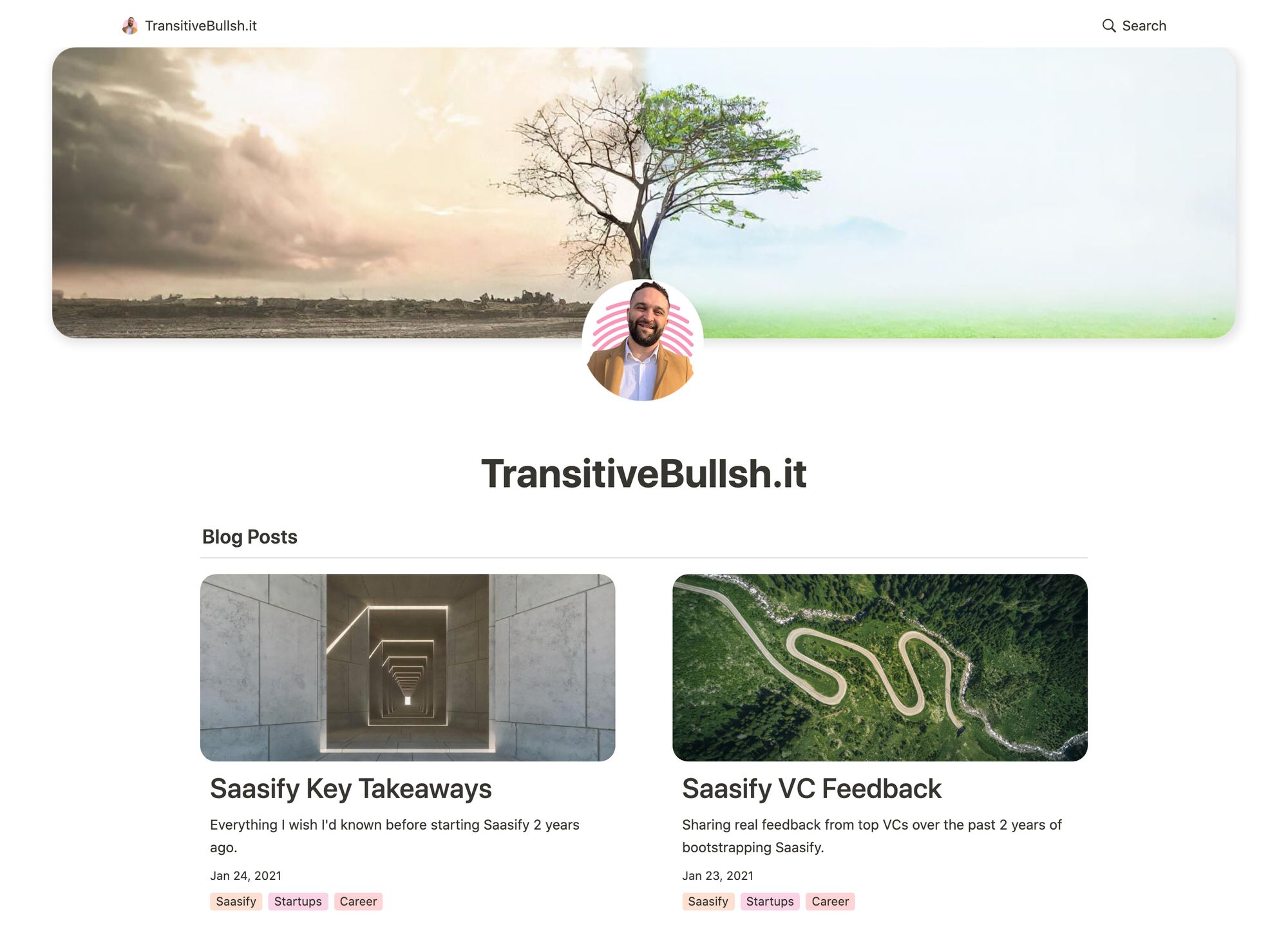
This repo is what I use to power my personal blog / portfolio site [transitivebullsh.it](https://transitivebullsh.it).
It uses Notion as a CMS, fetching content from Notion and then uses [Next.js](https://nextjs.org/) and [react-notion-x](https://github.com/NotionX/react-notion-x) to render everything.
The site is then deployed to [Vercel](http://vercel.com).
## Features
- Setup only takes a few minutes ([single config file](./site.config.js)) 💪
- Robust support for Notion content via [react-notion-x](https://github.com/NotionX/react-notion-x)
- Next.js / TS / React / Notion
- Excellent page speeds
- Automatic pretty URLs
- Automatic table of contents
- Full support for dark mode
- Quick search via CMD+P just like in Notion
- Responsive for different devices
- Optimized for Next.js and Vercel
## Setup
**All config is defined in [site.config.js](./site.config.js).**
1. Fork / clone this repo
2. Change a few values in [site.config.js](./site.config.js)
3. `npm install`
4. `npm run dev` to test locally
5. `npm run deploy` to deploy to vercel 💪
I tried to make configuration as easy as possible.
All you really need to do to get started is edit `rootNotionPageId`. It defaults to rendering my site's public notion page [78fc5a4b88d74b0e824e29407e9f1ec1](https://notion.so/78fc5a4b88d74b0e824e29407e9f1ec1).
You'll want to make your root Notion page **public** and then copy the link to your clipboard. Then extract the last part of the URL that looks like `d1b5dcf8b9ff425b8aef5ce6f0730202`, which is your page's Notion iD.
In order to find your Notion workspace ID (optional), just load any of your site's pages into your browser and open up the developer console. There will be a global variable that you can access called `block` which is the Notion data for the current page, and you just have to type `block.space_id` which will print out your page's workspace ID.
I recommend setting up a collection on your home page (optional; I use an inline gallery [here](https://notion.so/78fc5a4b88d74b0e824e29407e9f1ec1)) that contains all of your articles / projects / content. There are no structural constraints on your Notion workspace, however, so feel free to add content as you would normally in Notion.
## URL Paths
The app defaults to slightly different pathnames in dev and prod (though pasting any dev pathname into prod will work and vice-versa).
In development, it will use `/nextjs-notion-blog-d1b5dcf8b9ff425b8aef5ce6f0730202` which is a slugified version of the page's title suffixed with its Notion ID. I've found that it's really useful to always have the Notion Page ID front and center during local development.
In production, it will use `/nextjs-notion-blog` which is a bit nicer as it gets rid of the extra ID clutter.
The mapping of Notion ID to slugified page titles is done automatically as part of the build process. Just keep in mind that if you plan on changing page titles over time, you probably want to make sure old links will still work, and we don't currently provide a solution for detecting old links aside from Next.js's built-in [support for redirects](https://nextjs.org/docs/api-reference/next.config.js/redirects).
See [mapPageUrl](./lib/map-page-url.ts) and [getCanonicalPageId](https://github.com/NotionX/react-notion-x/blob/master/packages/notion-utils/src/get-canonical-page-id.ts) for more details.
NOTE: if you have multiple pages in your workspace with the same slugified name, the app will throw an error letting you know that there are duplicate URL pathnames.
## Theming
All CSS styles that customize Notion content are located in [styles/notion.css](./styles/notion.css).
They mainly target global CSS classes exported by react-notion-x [styles.css](https://github.com/NotionX/react-notion-x/blob/master/packages/react-notion-x/src/styles.css).
It should be pretty easy to customize most styling-related things, especially with local development and hot reload.
### Dark Mode
-opt.jpg?table=block&id=23b11fe5-d6df-422d-9674-39cf7f547523&spaceId=fde5ac74-eea3-4527-8f00-4482710e1af3&width=2000&userId=&cache=v2)
Dark mode is fully supported and can be toggled via the sun / moon icon in the footer.
## Extras
All extra dependencies are optional -- the project should work just fine out of the box.
If you want to copy some of the fancier elements of my site, then you'll have to set up a few extras.
### Fathom Analytics
[Fathom](https://usefathom.com/ref/42TFOZ) provides a lightweight alternative to Google Analytics.
It's optional, but I really love how simple and elegant their solution is.
To enable analytics, just add a `NEXT_PUBLIC_FATHOM_ID` environment variable.
This environment variable will only be taken into account in production, so you don't have to worry about messing up your analytics with localhost development.
### Automatic Table of Contents
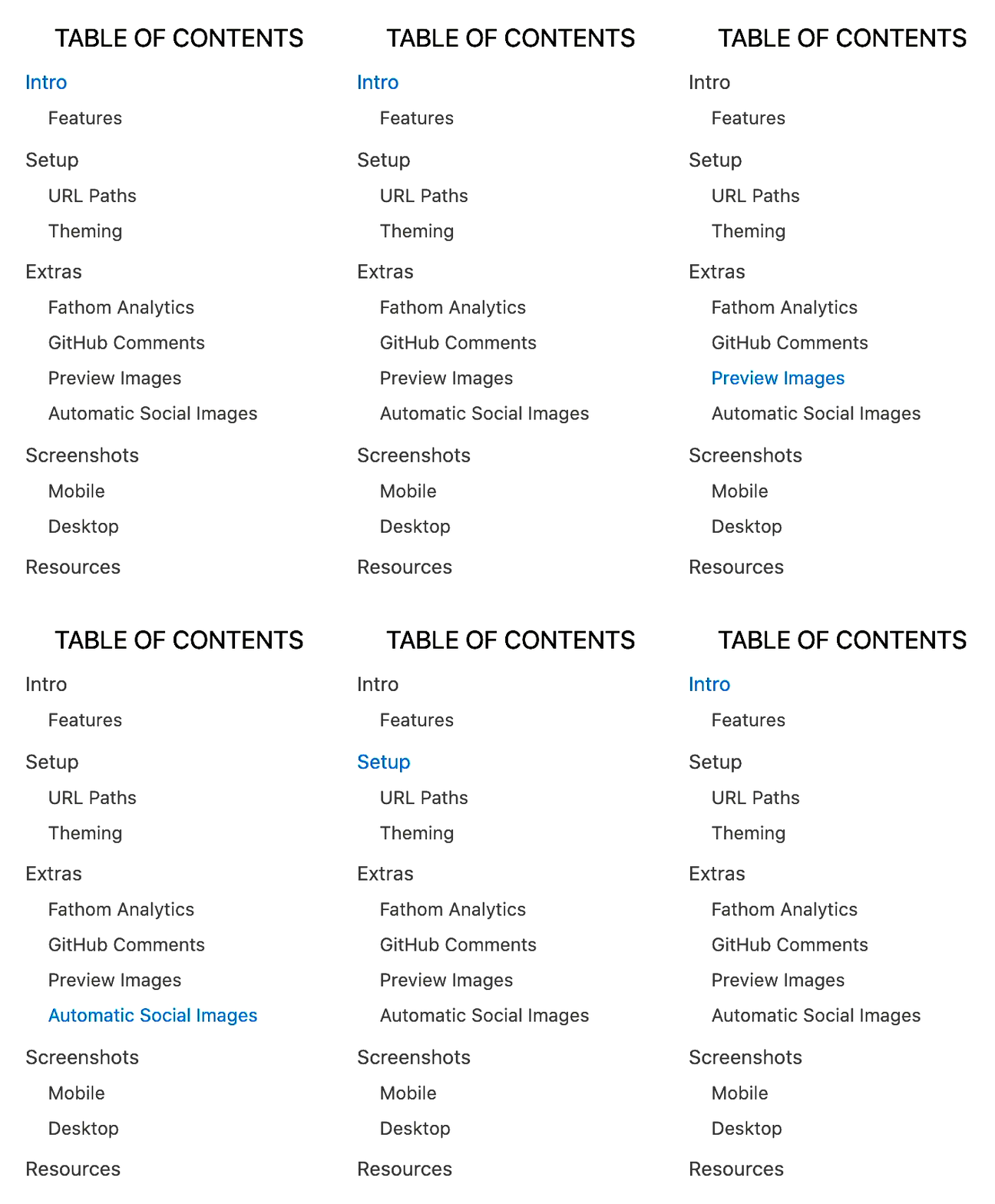
By default, every article page will have a table of contents displayed as an `aside` on desktop. It uses **scrollspy** logic to automatically update the current section as the user scrolls through your document, and makes it really easy to jump between different sections.
If a page has less than `minTableOfContentsItems` (default 3), the table of contents will be hidden. It is also hidden on the index page and if the browser window is too small.
This table of contents uses the same logic that Notion uses for its built-in Table of Contents block (see [getPageTableOfContents](https://github.com/NotionX/react-notion-x/blob/master/packages/notion-utils/src/get-page-table-of-contents.ts) for the underlying logic and associated unit tests).
## Screenshots
### Mobile Article Page

### Desktop Home Page

### Desktop Article Page (Dark Mode)
-opt.jpg?table=block&id=16e03de2-0df7-4232-a129-e1666505c4d2&spaceId=fde5ac74-eea3-4527-8f00-4482710e1af3&width=2000&userId=&cache=v2)
## License
MIT © [Travis Fischer](https://transitivebullsh.it)
Support my open source work by following me on twitter 