# Deploy a single Hummingbot instance with Docker Compose
This installs a single [Hummingbot](https://github.com/hummingbot/hummingbot) instance as a Docker container.
## Prerequisites
This configuration requires [Docker Compose](https://docs.docker.com/compose/), a tool for defining and running multi-container Docker applications. The recommended way to get Docker Compose is to install [Docker Desktop](https://www.docker.com/products/docker-desktop/), which includes Docker Compose along with Docker Engine and Docker CLI which are Compose prerequisites.
Docker Desktop is available on:
* [Linux](https://docs.docker.com/desktop/install/linux-install/)
* [Mac](https://docs.docker.com/desktop/install/mac-install/)
* [Windows](https://docs.docker.com/desktop/install/windows-install/)
## Getting Started
If you have installed Docker Compose successfully, the `docker-compose` command should be available in Terminal/Bash:
```
docker-compose
Usage: docker compose [OPTIONS] COMMAND
```
Clone this repo or copy the `docker-compose.yml` file to a directory on your machine where you want to store your Hummingbot files. This is where your encrypted keys, scripts, trades, and log files will be saved.
### Apple M1/M2 and other ARM machines**: If you are using an Mac with Apple Silicon M1/M2 chipset, use an IDE like VSCode to edit the `docker-compose.yml file
From that directory, run the following command to pull the image and start the instance:
```
docker-compose up -d
```
You should see the following output:
```
[+] Running 1/1
⠿ Container simple_hummingbot_compose-bot-1 Started
```
After it has started, attach to the instance:
```
docker attach simple_hummingbot_compose-bot-1
```
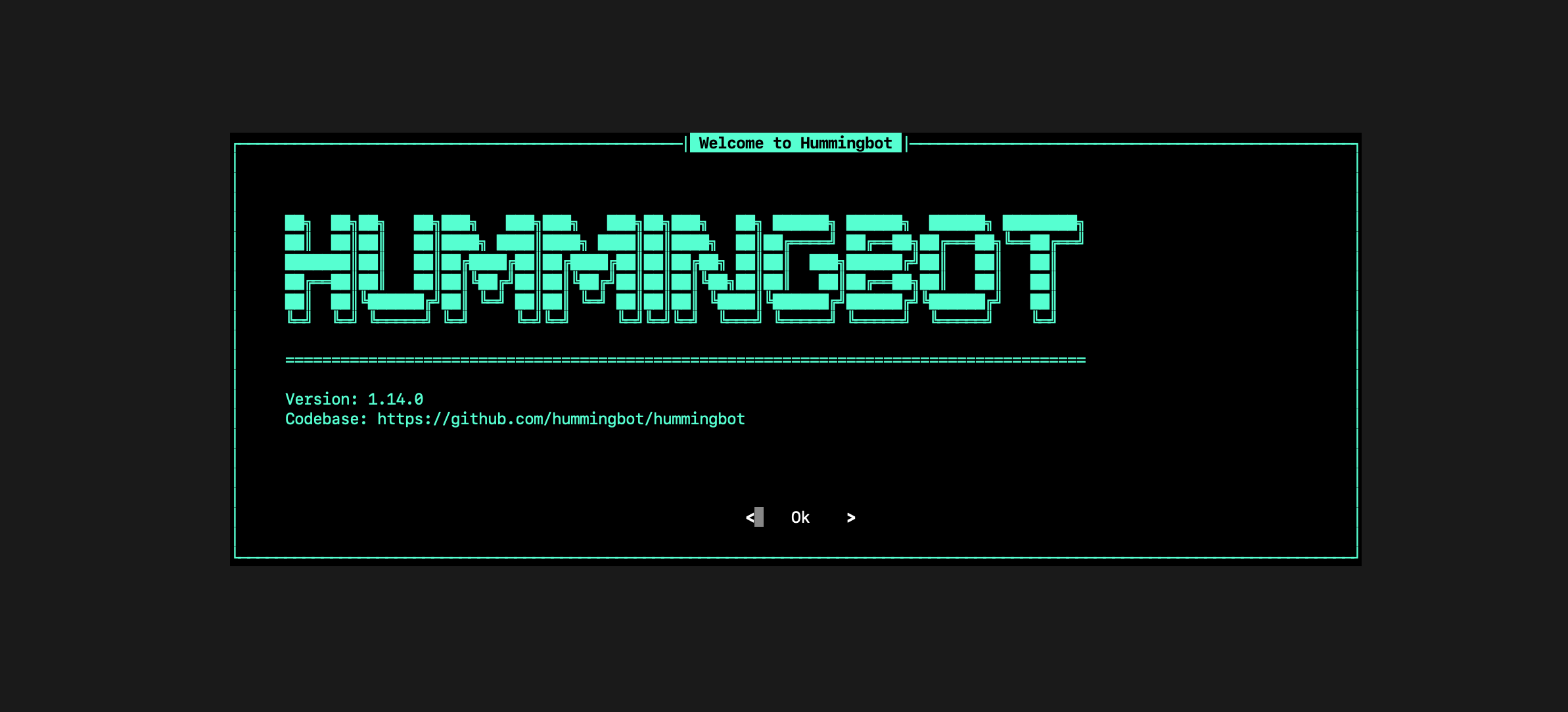
If installation was successful, you should see the Hummingbot welcome screen:
To get started with Hummingbot, check out the following docs:
* [Basic Features](https://docs.hummingbot.org/operation/)
* [Quickstart Guide](https://docs.hummingbot.org/quickstart/).
* [Hummingbot FAQ](https://docs.hummingbot.org/faq/)
## Useful Docker Commands
Use the commands below or use the Docker Desktop application to manage your Hummingbot container:
### Create the container
```
docker-compose up -d
```
### Attach to the container
```
docker attach simple_hummingbot_compose-bot-1
```
### Detach from the instance and return to command line
Press keys Ctrl + P then Ctrl + Q
### Update the container to the latest image
```
docker-compose up --force-recreate --build -d
```
### List all containers
```
docker ps -a
```
### Stop a container
```
docker stop
```
### Remove a container
```
docker rm
```